KalamDB Admin UI Guide
The Admin UI gives you one place to run SQL, inspect namespaces/tables, monitor jobs, review logs, and manage settings.
Access the UI
Open:
http://localhost:8080/ui/sqlIf you are not authenticated, KalamDB redirects to the login page.
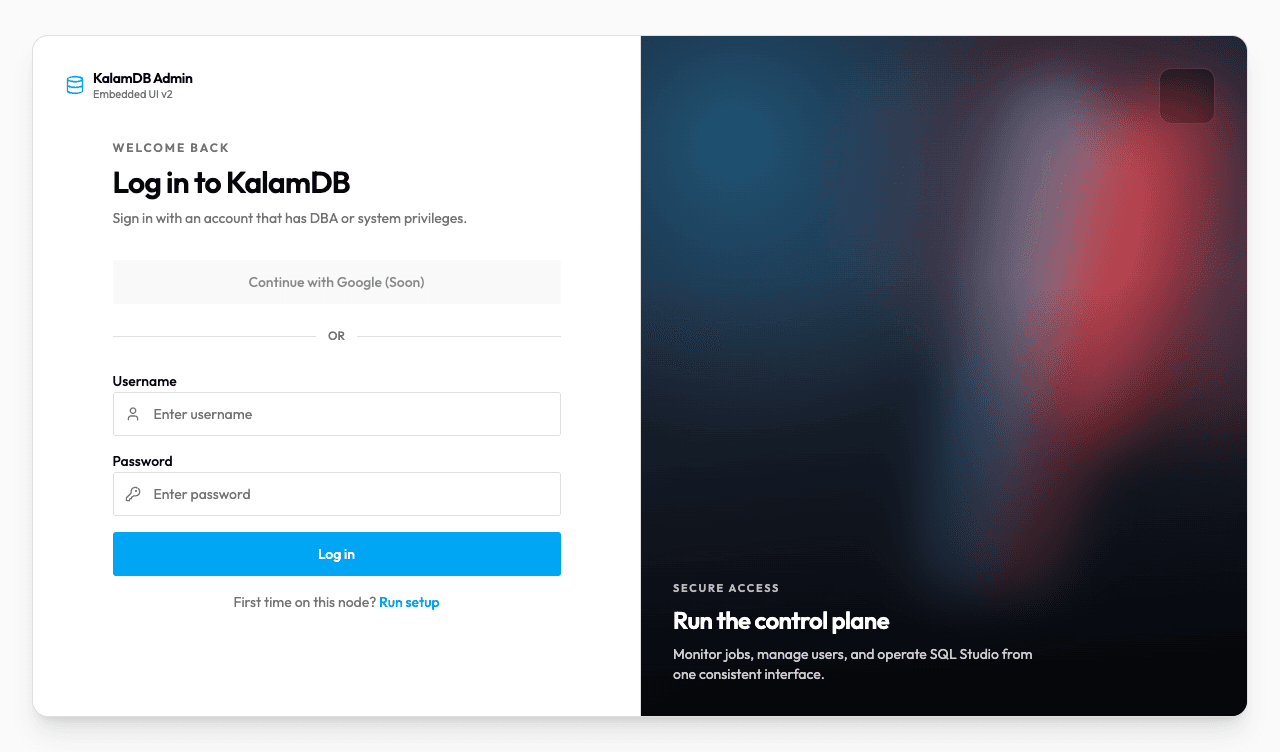
Sign in
Use an account with DBA or system privileges.
For your local environment:
- Username:
admin - Password:
kalamdb123
After login, you land in SQL Studio.
SQL Studio
SQL Studio is the main workspace for querying and inspection:
- Explorer panel for namespaces and tables
- Query tabs for drafting/saving SQL
- Run query execution with result/log tabs
- Details/History side panel for schema and query context
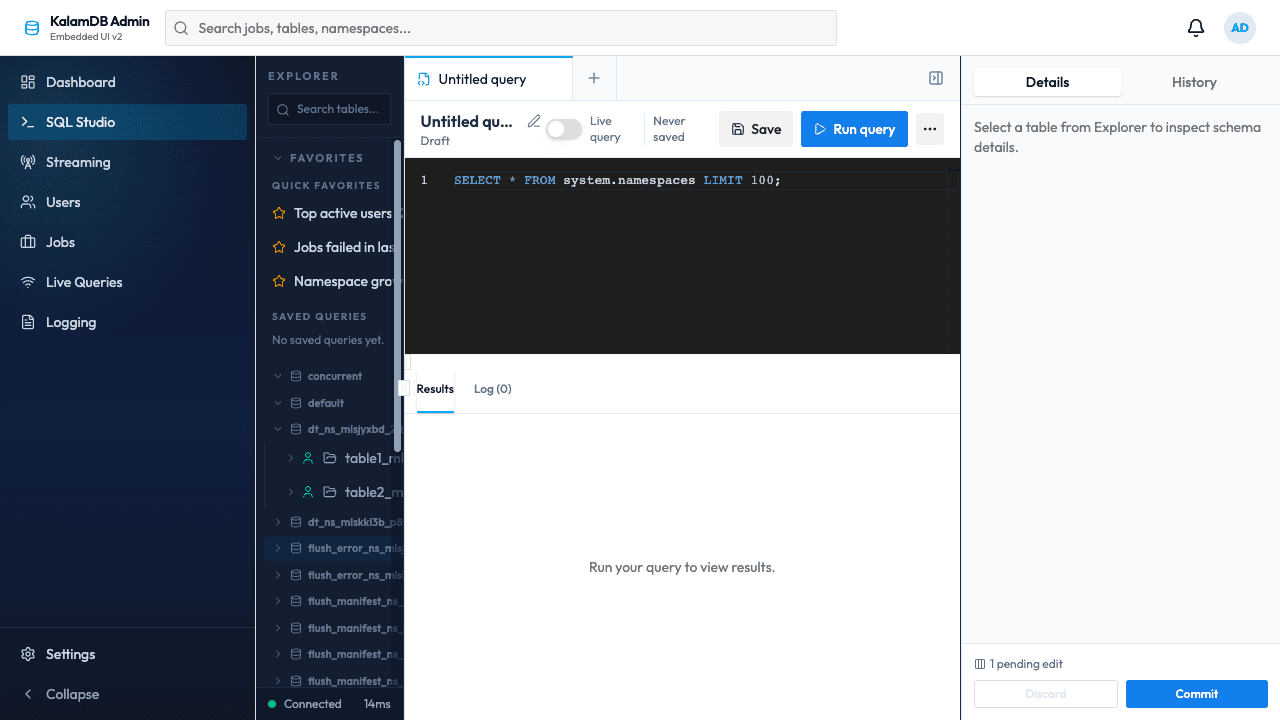
Run your first query
The default editor query is:
SELECT * FROM system.namespaces LIMIT 100;Click Run query to populate the Results tab.
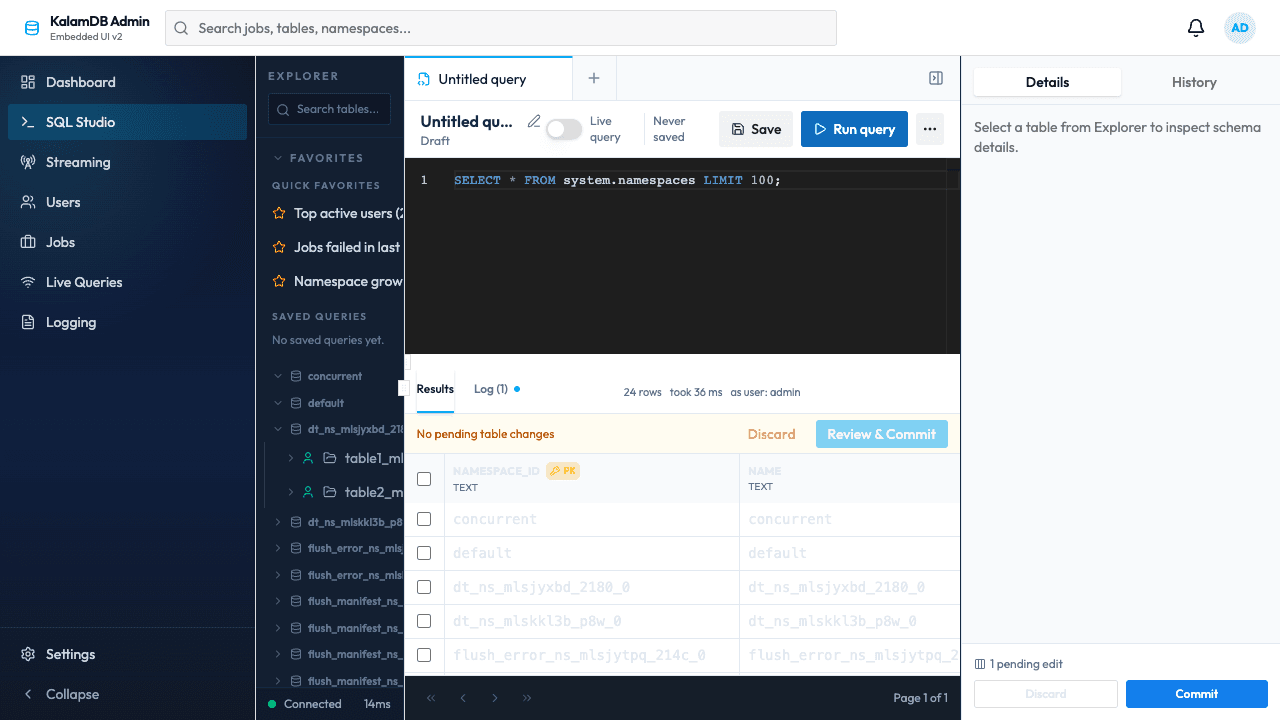
Main navigation areas
The left sidebar exposes these operational areas:
- Dashboard: health strip, queue pressure, and system counts (namespaces, tables, users, jobs, storages, connections).
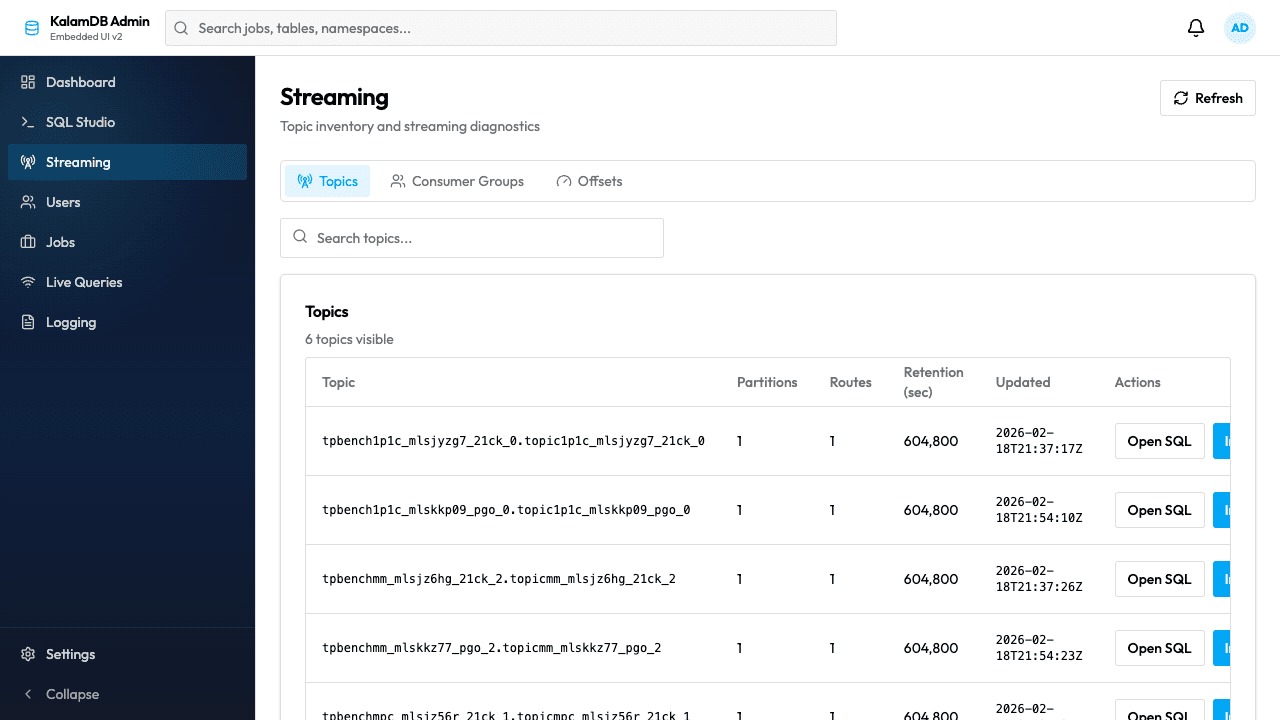
- Streaming: topic inventory and diagnostics, with quick actions like
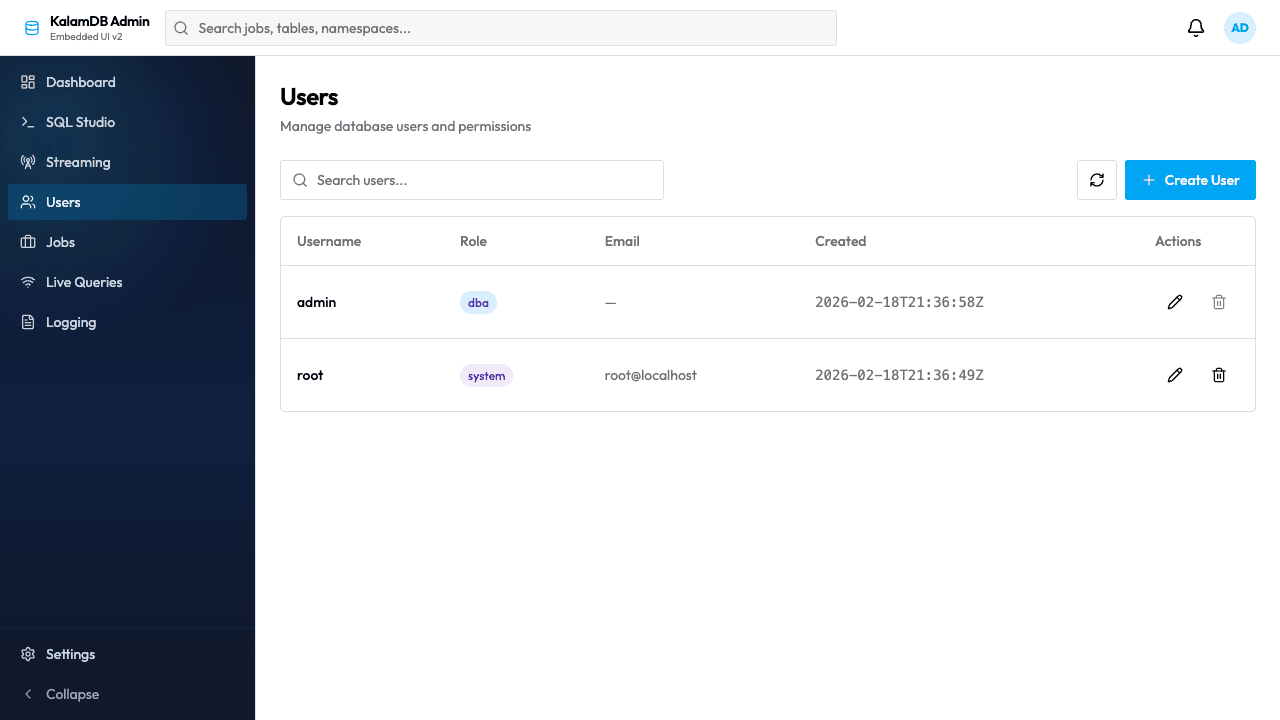
Open SQLandInspect. - Users: search users and create new users.
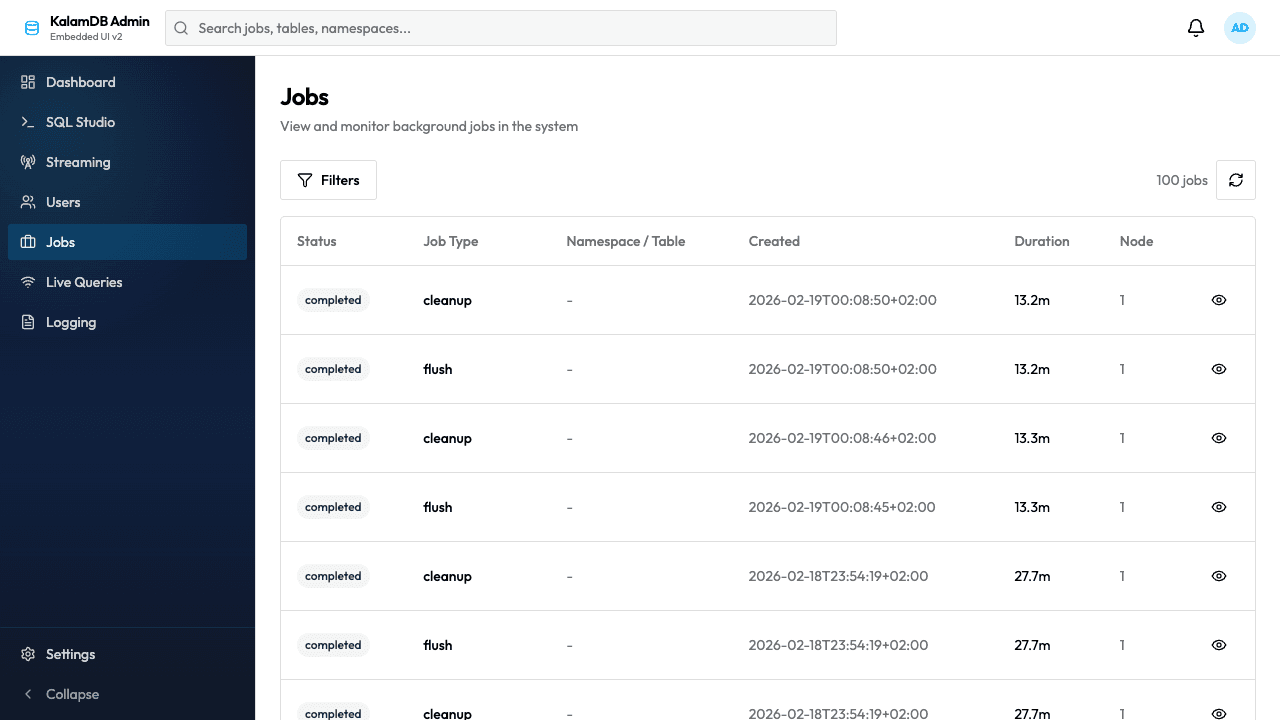
- Jobs: monitor background jobs and apply filters.
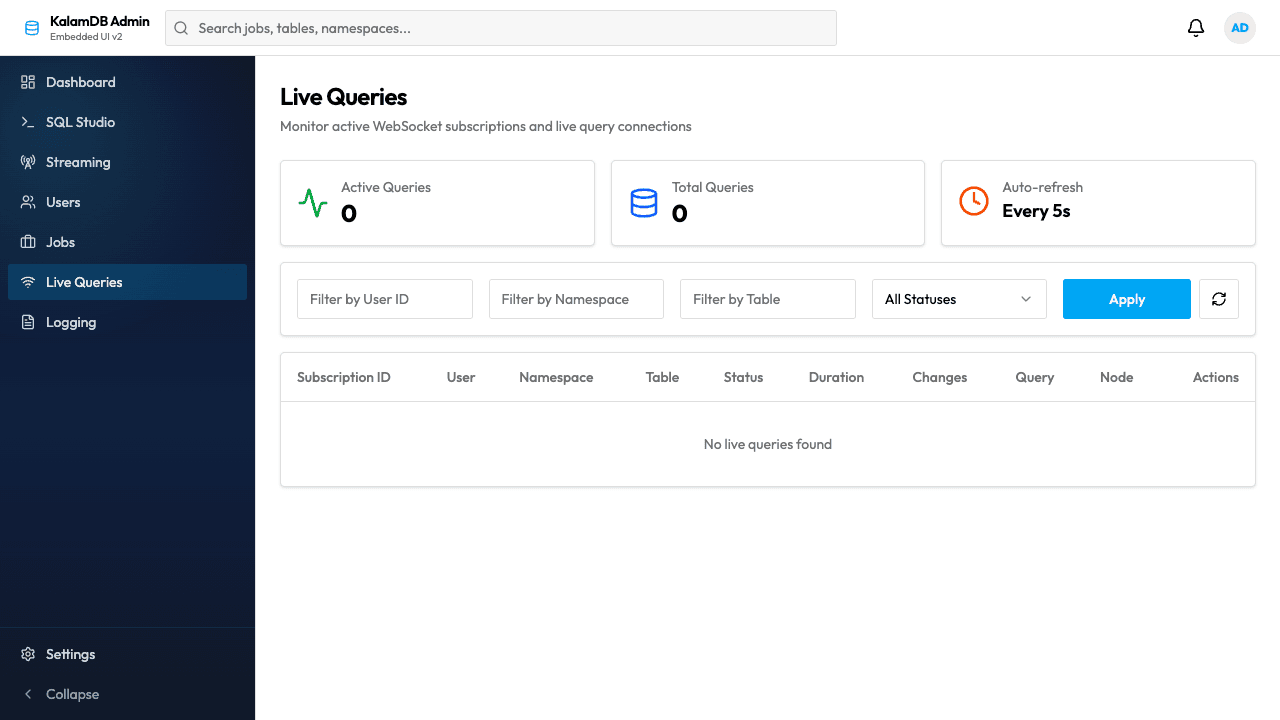
- Live Queries: inspect active subscriptions and apply user/namespace/table filters.
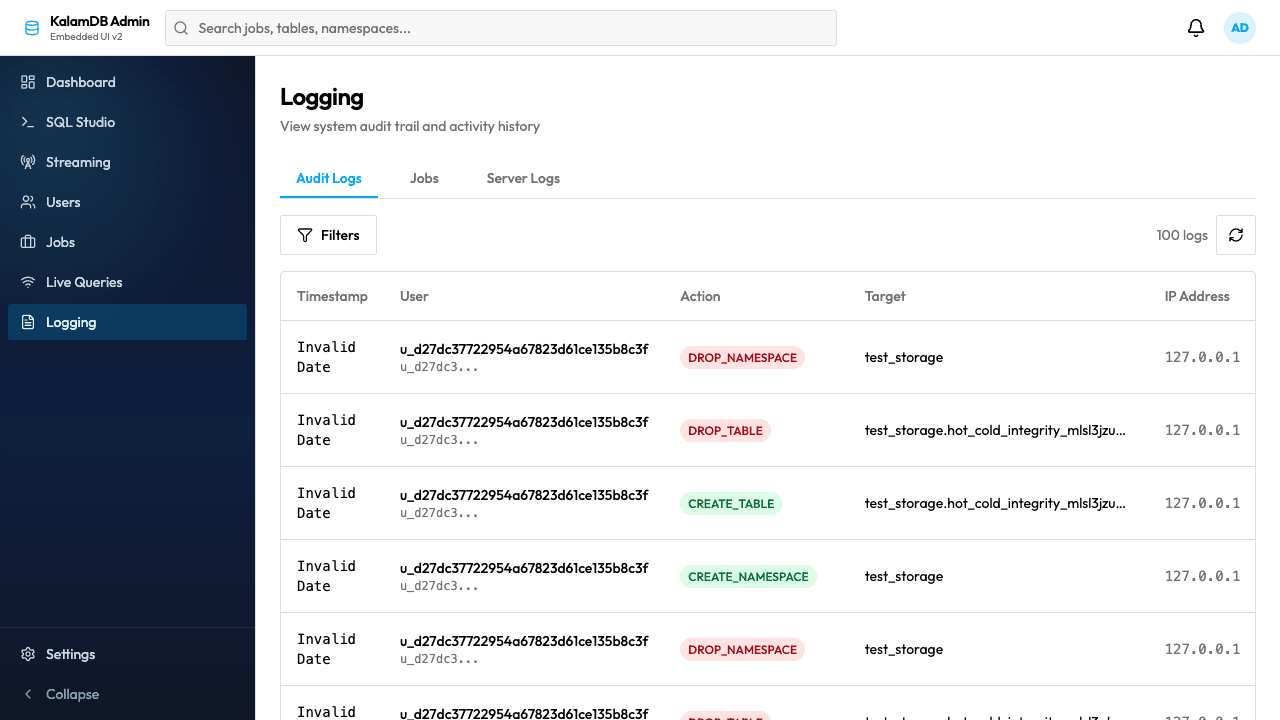
- Logging: audit, jobs, and server logs with detail drill-down.
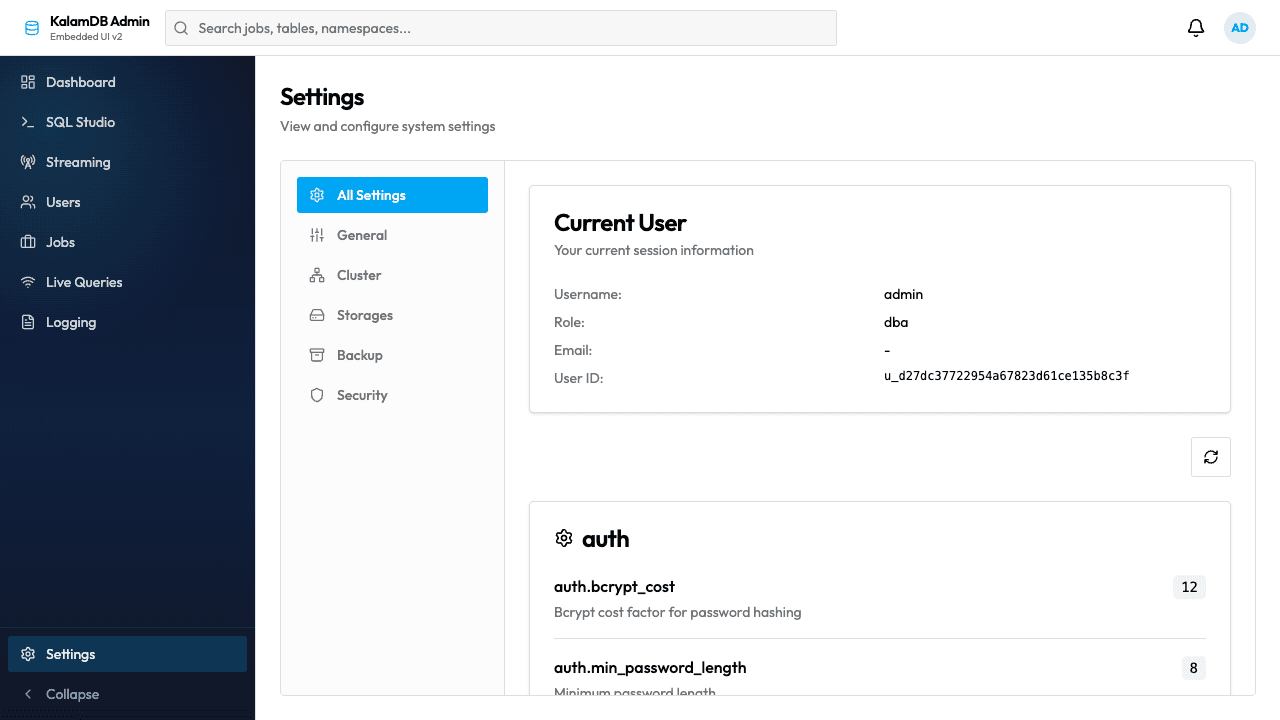
- Settings: view grouped runtime configuration (
auth,cluster,limits,logging,storage,websocket, and more).
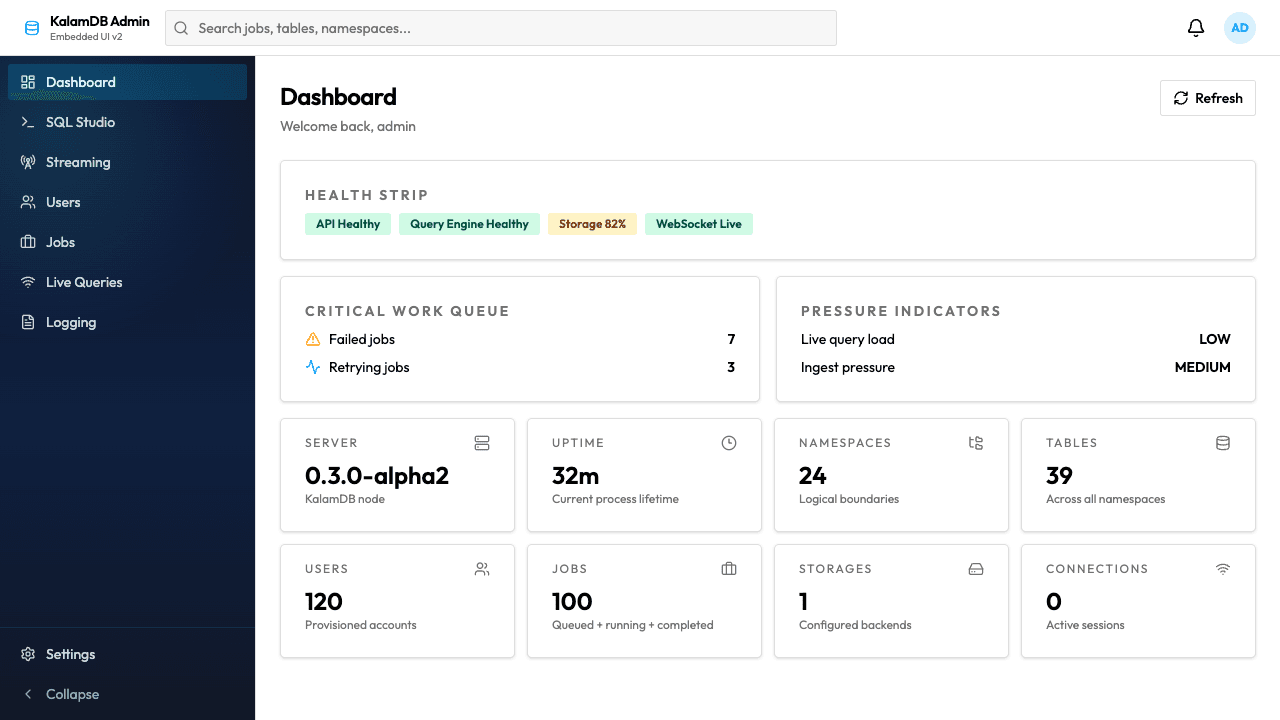
Practical workflow
- Validate node health in Dashboard.
- Run and iterate on SQL in SQL Studio.
- Check execution and background activity in Jobs and Logging.
- Review streaming activity in Streaming and Live Queries.
- Verify configuration in Settings before production changes.
Last updated on